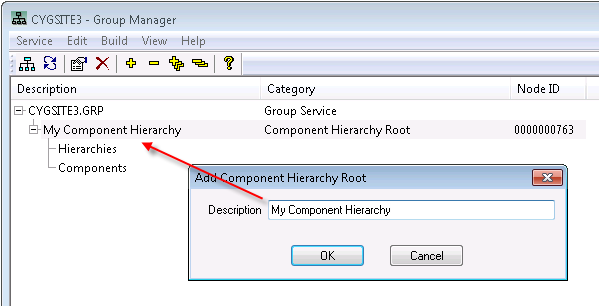
The following procedure explains a basic workflow for creating a group hierarchy. Creating a group hierarchy in the Group Manager utility depends in large part upon your specific needs. Be sure to have a clear idea of what purposes your group hierarchy will serve before you start to create it.
Note: If an option on the Group Manager utility menu bar is dimmed, that option is not applicable to the selected hierarchical level. When you are at the appropriate hierarchical level for an action, dimmed menu options become available.
For more information, see the following subsections below:
The creation of a group hierarchy requires some preliminary steps. Make sure that you have taken the following steps:
If you have taken the steps above, proceed to 2. Select a Group Service.
To select the group service to which your group hierarchy will apply, go to the CygNet\Utilities directory and open the Group Manager utility (GrpMgr.exe), then do one of the following:
If you are done adding a group service, proceed to 3. Create a Component Hierarchy Root.
A component hierarchy root is the parent node for all group hierarchies and components. Once a component hierarchy root is created, define its hierarchies and components.
To Create a Component Hierarchy Root
If you are done adding all of the component hierarchy roots you need, proceed to 4. Create a Navigation Hierarchy Root.

A navigation hierarchy root can contain multiple navigation hierarchies. Navigation hierarchies determine the hierarchical relationship between child nodes, which are views, levels, and components. A navigation hierarchy does not have to use every defined rule or component available, which lets you change the sort order of rules and components without changing the actual navigation hierarchy.
Once created, you cannot move navigation hierarchies, views, levels, or components up or down the hierarchical tree in the Group Manager. If hierarchies, views, levels, or components are in an incorrect order, you must delete them in the Group Manager and then re-add them in the correct order. You can, however, rename hierarchies, views, levels, and components.
To create a navigation hierarchy, first create a navigation root, then add rule-based, component-based, or Web navigation views, and finally create levels that are made up of rules or are linked to components.
To Create a Navigation Hierarchy Root
Note: Depending on your specific needs, you might or might not need to set up a GRP Web navigation hierarchy. If you want your Web application to only display CygNet Vision or CygNet Studio files, you do not need to set up a GRP Web navigation hierarchy. If you want your Web application to interact with the GRP in any other way, you must set up a Web navigation hierarchy. For more information, see Web.
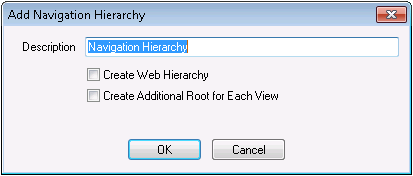
If you are done adding all of the navigation hierarchy roots you need, proceed to 5. Add a Navigation View.
Now that you have a navigation hierarchy root, add a view to your navigation hierarchy. Each actual hierarchy is called a view because it is one perspective or view possible from a collection of defined facility or device attributes. You can have different views within the same hierarchy.
A rule-based view begins with a Summary level but has no Facilities level. A component-based view begins with a Summary level and ends with a Facilities level. Each other level in a view is made up of one or more rules or components, depending on the kind of view you choose.
Note: Although both rule-based views and component-based views are supported by CygNet, best practice recommends using rule-based views instead of component-based views. Rules provide a more comprehensive and fine-tuned way to create views.
To Add a Non-Web Navigation View
Note: Ignore the Summary and/or Facilities levels that result from creating a non-Web navigation hierarchy view. They are predefined nodes used by the system.
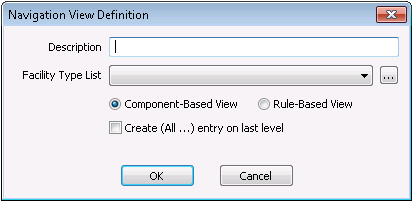
Note: Depending on your specific needs, you might or might not need to set up a GRP Web navigation hierarchy. If you want your Web application to only display CygNet Vision or CygNet Studio files, you do not need to set up a GRP Web navigation hierarchy. If you want your Web application to interact with the GRP in any other way, you must set up a Web navigation hierarchy. For more information, see Web.
If you are done adding all of the navigation views you need, proceed to 6. Add a Level.
Now that you have a navigation view, add a level. You can have many different levels within the same view. If the view is rule based, its levels must be rules. If the view is component based, its levels must be components.
Important: If you are adding levels to a Web-based navigation hierarchy, be sure to see To Define a Summary and/or Facilities Level for a Web-Based Navigation Hierarchy.
To Add a Level to a Rule-Based View
To Add a Level to a Component-Based View
To Define a Summary and/or Facilities Level for a Web-Based Navigation Hierarchy
Note: The following procedure only applies to Summary and/or Facilities levels within a Web-based view.
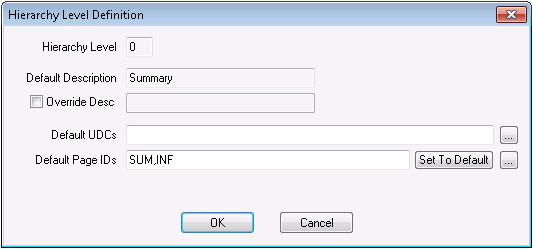
If you have completed your entire group hierarchy, including all roots, hierarchies, views, levels, and components, proceed to 7. Build Your Hierarchies. The resulting hierarchy might have many different navigation hierarchies with many different views and many facility and device attributes defined by various rules and components.
When you are done constructing your entire component hierarchy (that is, all navigation hierarchies, views, levels, rules, and/or components), you must build the hierarchy. After your initial build, you must also rebuild your hierarchy any time you modify it in any way. The build process collects relevant facilities and organizes them according to the navigation hierarchy structure(s) you defined and it (re)loads all of your hierarchies into the GRP for use in your CygNet system.
In effect, steps 1 - 6 above create a draft of your hierarchy (or hierarchies) and step 7 implements your new hierarchy (or hierarchies). Once you've built, you can view various group nodes and their properties in the GRP, although editing nodes in the GRP service is discouraged.
You might need to rebuild your hierarchies occasionally. Rebuilding hierarchies is necessary in the following situations:
When you rebuild a hierarchy, the rebuild deletes existing hierarchy components and rules and then rebuilds them. The normal hierarchy building (or rebuilding) process will check for and correct any recursive parent/child relationships detected. Additionally, if any improper node relationships are detected, they will be fixed.
There are several build options. For more information, see the Build entries in User Interface. If you click Cancel, you must initiate a rebuild of the hierarchy again for the rebuild to take effect.
To Build Your Hierarchy
Note: The Build All for Group Service option can be run from a command line. The other build options cannot be run from a command line.
C:\CygNet\Utilities\GrpMgr.exe -r SITE.SERVICE
Example
In the example below, SITE01 is the site name and GRP is the name of the Group Service. This command-line parameter allows the group manager build option to be scheduled using the Microsoft Windows scheduler.
|
C:\CygNet\Utilities\GrpMgr.exe -r SITE01.GRP |
You can also schedule hierarchy rebuilds using a third-party scheduler such as Microsoft Windows Scheduled Tasks. This rebuilds all hierarchies in the specified group service.
GrpMgr.exe -r SITE.SERVICE
Example
|
GrpMgr.exe -r MYSITE.GRP |
|
|
|

